Debugging
Here's a list of tips & tricks you can use when your test suite isn't working the way you've intended.
View source
If the screenshots aren't looking right you can look at how a screenshot was made. You'll find it in the "…" overflow menu to the right of a screenshot. For a diff, the menu has separate "View details for before image…" and "View details for after image…" options:
You'll land on the Snapshot details page. It looks something like this: 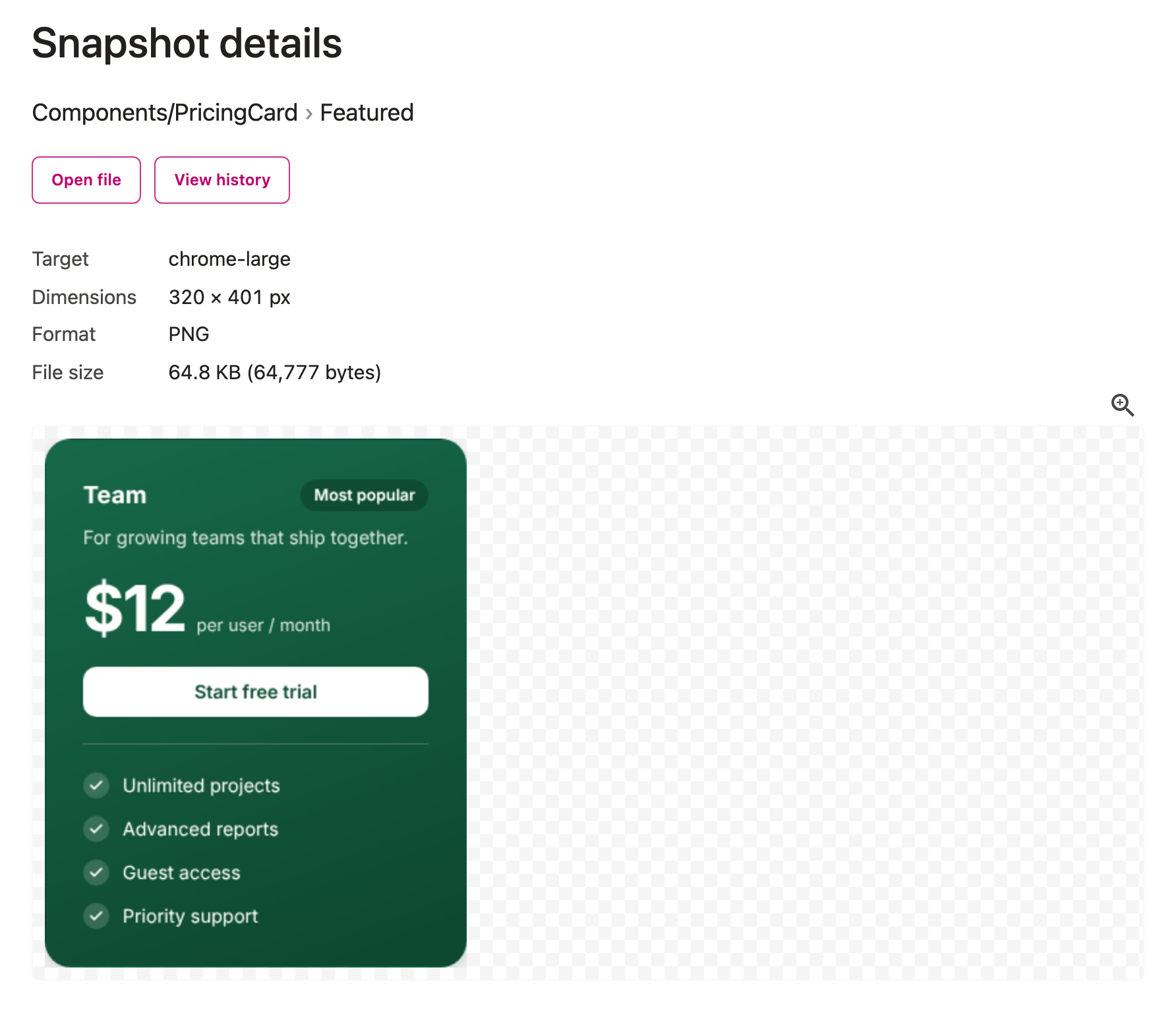 The Snapshot details page for a "PricingCard" snapshot
The Snapshot details page has the screenshot's target, size and file, and a link to its history. For a few days after a run, while Happo still has the run's details, it also has render timings and a Source section that says what was used to produce the screenshot, with a few buttons that can be useful. Depending on the type of integration you are using, you'll see one or more of these buttons:
- A "View recorded HTML" button (for Happo Examples and Cypress setups) that allow you to see the rendered HTML directly in the browser, along with the CSS used.
- A "Download assets" button, where you can grab the images, fonts, etc, that were used when taking the screenshot.
- A "Download static package" button that let's you fetch the statically built package used to render the example. This will e.g. show up if you're using Storybook, or if you're using Happo Examples with the
prerender: falseoption. - A "Re-generate snapshot" button, that will let you retry taking the screenshot. Continue reading for more on this option!
Re-generate snapshot
If you are using up-to-date happo libraries (happo.io v9.1.0 or later, happo-plugin-storybook v4.1.0 or later, happo-static v1.0.0 or later), you can tell Happo to retry taking the screenshot. Once that's done, the associated report (or reports in some cases) will be updated to use the new screenshot. Please note that updating the reports can take a minute or two to fully propagate (because of caching).
Static package downloads
When you download a static package as a zip file, you can debug the source locally by following these steps:
- Unzip the downloaded file
- Start a http server in the unzipped folder (
http-serveris a good option) - Check the URL where the server is started and open
http://localhost:8080/iframe.htmlin your browser (replace8080with the port used for your server). - Wait for the page to load, then open up a JavaScript console and run
window.happo.nextExample(). - See your first component load.
- Keep calling
window.happo.nextExample()to iterate through your components.
If you quickly want to iterate through all components, copy and paste this script in the JavaScript console:
var renderIter = function () {
  window.happo.nextExample().then(function (a) {
    if (!a) {
      return;
    }
    console.log(a);
    renderIter();
  });
};
renderIter();
Run in VERBOSE mode
If you want to know what Happo is doing before it hands over to the Happo backend, you can invoke the CLI with a VERBOSE=true environment variable.
VERBOSE=true npm run happo run
This will increase the amount of logs generated during the happo run. Depending on the integration type you're using, it will also store payloads so that you can inspect the html and css created
Failed on worker
In some cases, your happo runs will fail with a Failed on worker message. In some cases, there's an additional error message that might hint at why the job failed. To see this error message, go to your Happo dashboard, look under "Snap-requests" and click on the one that has a failure icon.
Timed out while waiting for window.happo
A common error when using the Storybook integration is Timed out while waiting for window.happo. This is often caused by missing to register the happo-plugin-storybook plugin. See how to get rid of this in the Storybook docs.